Showing posts with label Backup. Show all posts

Monday, 7 August 2017

Endeca | Backup And Restore keyword redirects

As part of your Endeca application backup strategy. You can back up and restore keyword redirects. This method is also useful to transfer keyword redirects from one environment to other. As example here I am going to export keyword redirects from one application to another.

1. Backup (export)  keyword redirects : To backup keyword redirects,  execute below command from your application control directory. This will export keyword redirects as zip file.

syntax : runcommand.bat IFCR exportContent redirects <redirectsExportPath>

Example : runcommand.bat IFCR exportContent redirects F:\Endeca\apps\CSAen\test_data

2. Restore keyword redirects : Execute this command to import or restore keyword redirects.

syntax : runcommand.bat IFCR importContent redirects <redirectsImportPath>

Example : runcommand.bat IFCR importContent redirects F:\Endeca\apps\CSAen\test_data

Check these screen capture before and after keyword redirect import.
Before Import
Before Import
After import.

After Import
After Import

Thursday, 3 August 2017

Endeca | Backup And Restore thesaurus entries

As part of your Endeca application backup strategy. You can back up and restore thesaurus entries. This method is also useful to transfer thesaurus from one environment to other. As example here I am going to export thesaurus from one application to another.

1. Backup (export)  thesaurus : To backup thesaurus,  execute below command from your application control directory. This will export thesaurus as zip file.

syntax : runcommand.bat IFCR exportContent thesaurus <thesaurusExportPath>

Example : runcommand.bat IFCR exportContent thesaurus F:\Endeca\apps\CSAStagingde\config\temp\thesaurus

2. Restore thesaurus : Execute this command to import or restore thesaurus.

syntax : runcommand.bat IFCR importContent thesaurus <thesaurusImportPath>

Example : runcommand.bat IFCR importContent thesaurus F:\Endeca\apps\CSAStagingde\config\temp\thesaurus

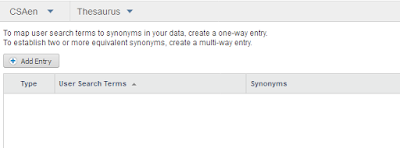
Check these screen capture before and after thesaurus import.

Before Thesaurus Import
After importing thesaurus.

After Thesaurus Import

Wednesday, 18 May 2016

MDEX | Revert Endeca Index to Particular Baseline

Follow below steps to revert\restore MDEX indexes to previous baseline update.

1. Stop the MDEX Engine.
2. Clean up dgraph_input and sub directories [Delete the content].
3. Copy the previous backup indexes from dgidx_output.<YYYY_MM_DD.HH_MM_SS> to dgraph_input directory.
4. Start the MDEX Engine. MDEX Engine reads the files in dgraph_input and its sub directories.

Here is the example.

1. Old baseline data

Old Indexed Data

2. Latest indexed data

Latest Indexed Data


3. Restore the old indexed data using above steps