Saturday, 16 September 2017

Endeca | Monitoring Endeca components

Monitoring is the way to ensure that application components are working as expected. You can monitor Endeca components using below steps.

Monitoring Endeca components

1.  MDEX : To check the aliveness of Dgraph access : http://DgraphServerNameOrIP:DgraphPort/admin?op=ping
 For example : http://localhost:15000/admin?op=ping

This command returns light weight html : dgraph JagdevSingh-PC:15000 responding at Sat Sep 16 21:55:51 2017
 
2.  CAS : To check the aliveness of CAS access : http://CASServerNameOrIP:CASPort/cas?wsdl
For example : http://localhost:8500/cas?wsdl 

3.  EAC Central Server :To check the aliveness of EAC Central Server access : http://machine_name:8888/eac/ProvisioningService?wsdl
For example : http://localhost:8888/eac/ProvisioningService?wsdl

4.  EAC Agent  :  To check the aliveness of EAC Agent access : http://machine_name:8888/eac-agent/IDelegateServer?wsdl
For example : http://localhost:8888/eac-agent/IDelegateServer?wsdl

5.Record Store :  To check the aliveness of Record Store access : http://CASMachineNameOrIP:CASPort/<RecordStoreName>?wsdl
For example : http://localhost:8500/Discover-dimvals?wsdl

Saturday, 12 August 2017

Endeca | Removing Endeca application from Workbench

Issue : In the case when you try to remove Endeca application using runcommand (runcommand --remove-app). If workbench is down at that point of time. Then this application won't be removed from workbench.

In this case runcommand throws below exception.

=============================================================================
Caused by org.apache.http.conn.HttpHostConnectException
org.apache.http.impl.conn.HttpClientConnectionOperator connect - Connect to JagdevSingh-PC:8006 [JagdevSingh-PC/127.0.0.1] failed: Connection refused: connect
Caused by java.net.ConnectException
java.net.DualStackPlainSocketImpl connect0 - Connection refused: connect

=============================================================================

In this case if you start workbench your application site will display there.

Endeca Application
Endeca Application

Solution : Shutdown workbench, clean workbench workspace folder and restart it.

Endeca Application Removed

Monday, 7 August 2017

Endeca | Backup And Restore keyword redirects

As part of your Endeca application backup strategy. You can back up and restore keyword redirects. This method is also useful to transfer keyword redirects from one environment to other. As example here I am going to export keyword redirects from one application to another.

1. Backup (export)  keyword redirects : To backup keyword redirects,  execute below command from your application control directory. This will export keyword redirects as zip file.

syntax : runcommand.bat IFCR exportContent redirects <redirectsExportPath>

Example : runcommand.bat IFCR exportContent redirects F:\Endeca\apps\CSAen\test_data

2. Restore keyword redirects : Execute this command to import or restore keyword redirects.

syntax : runcommand.bat IFCR importContent redirects <redirectsImportPath>

Example : runcommand.bat IFCR importContent redirects F:\Endeca\apps\CSAen\test_data

Check these screen capture before and after keyword redirect import.
Before Import
Before Import
After import.

After Import
After Import

Thursday, 3 August 2017

Endeca | Backup And Restore thesaurus entries

As part of your Endeca application backup strategy. You can back up and restore thesaurus entries. This method is also useful to transfer thesaurus from one environment to other. As example here I am going to export thesaurus from one application to another.

1. Backup (export)  thesaurus : To backup thesaurus,  execute below command from your application control directory. This will export thesaurus as zip file.

syntax : runcommand.bat IFCR exportContent thesaurus <thesaurusExportPath>

Example : runcommand.bat IFCR exportContent thesaurus F:\Endeca\apps\CSAStagingde\config\temp\thesaurus

2. Restore thesaurus : Execute this command to import or restore thesaurus.

syntax : runcommand.bat IFCR importContent thesaurus <thesaurusImportPath>

Example : runcommand.bat IFCR importContent thesaurus F:\Endeca\apps\CSAStagingde\config\temp\thesaurus

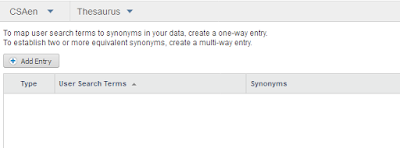
Check these screen capture before and after thesaurus import.

Before Thesaurus Import
After importing thesaurus.

After Thesaurus Import

Friday, 14 July 2017

Endeca | Configure Stemming in CAS based application

Stemming : Stemming broadens search results to include root words and variants of root words.

For example, search results for the word truck will include the derivation trucks, while a search for trucks will also include its word root truck.

Steps to Configure Stemming : You can configure stemming manually in stemming.xml file. This file is located in <Endeca_App_Directory>/config/mdex directory. You can manually update this file. If stemming.xml does not contain an entry for a language, stemming is not enabled for that language and the default analysis is applied to that language.

In stemming.xml, the entry for a language is contained in a separate <STEMMING> element. Each subelement in the <STEMMING> element begins with STEM_language-code, where language-code identifies the language; for example, STEM_DE for German.

The subelements specify the following :
  • Whether stemming is to be performed on that language.
  • Whether a static wordforms file is to be used.
  • Whether compound matching is to be performed.
For example, the following entry, for American English, specifies that stemming is to be performed using a static wordforms file, and that compound matching is not to be performed.
================================================================

<STEMMING>
<STEM_EN_US ENABLE="TRUE"
USE_COMPOUND_MATCHING="FALSE"
USE_STATIC_WORDFORMS="TRUE"/>
</STEMMING>

================================================================

Sunday, 2 July 2017

Endeca | Configuring features of a CAS-based application through XML files

If you are using CAS to process your data, rather than Forge, there is a subset of application features that you must configure manually in the instance configuration XML files for an application. You cannot use Oracle Oracle Commerce Workbench or Developer Studio to configure these particular features.

The following table provides a mapping between application features and the corresponding XML file where you configure each feature. The instance configuration files are stored in <app dir>\<app name>\config\mdex.
XML Configuration Files

Wednesday, 28 June 2017

Endeca | Configure stop words

What is meaning of stop word in Endeca ?

Stop words are words that are ignored if an application user includes them as part of a search.Typically, common words like the, and, a and so on are included in the stop word list.

How to add stop words in CAS based application ?

Step 1 : Open application specific stop word configuration file.

This file is located at <Application Directory>/config/mdex/<Application_Name>.stop_words.xml

For example : For store application installed at /opt/app/endeca/apps/ location file will be /opt/app/endeca/apps/Store/config/mdex/Store.stop_words.xml  

Step 2 : Add stop words.
By Default there is no stop word configured.
============================================================
<?xml version="1.0" encoding="UTF-8" standalone="no" ?>
<!DOCTYPE STOP_WORDS SYSTEM "stop_words.dtd">
<STOP_WORDS>

  <STOP_WORD>of</STOP_WORD>
  <STOP_WORD>the</STOP_WORD>
  <STOP_WORD>how</STOP_WORD>
  <STOP_WORD>when</STOP_WORD>
</STOP_WORDS> 
============================================================
Step 3 : Run baseline. 

Important Points :
1. Words added to the stop word list are not expanded by other Endeca features like stemming and thesaurus. That means that if you set the word item as a stop word, its plural form items will not be marked automatically as a stop word. If you want both forms to be on the stop word list, you must add them individually. 

2. Stop words must be single words only, and cannot contain any non-searchable characters. If more than one word is entered as a stop word, neither the individual words nor the combined phrase will act as a stop word. Non-searchable characters within a stop word will also cause this behavior. Entering “full-book” as a stop word acts just as if you had entered “full book”, and does not have any effect on searches.