Sunday, 7 January 2018

Explore the Endeca Configuration Repository using WebDAV Client

The Endeca Workbench application is storing all its configuration files inside a configuration repository. It is called Endeca configuration repository (ECR). Endeca Configuration Repository is Apache Sling, a REST web framework built on top of the Java Content Repository Apache JackRabbit.

Workbench interacts with ECR using scripts in the control folder (inside deployed application) to upload content to that configuration repository, such as set_media, set_editors_config, import_site and set_templates.
One interesting thing about this repository is you can connect with ECR using any WebDAV client. Once connected you can explore the content of the repository.

Here I am going to demonstrate ECR (for Discover application) exploration using CyberDuck client on windows.

1. Download and install CyberDuck.

2. Open CyberDuck and enter details for connection.


Server : Workbench server
Port : Workbench Port
Username : Workbench username
Password : Workbench password
Path :/ifcr/sites/<Enter name of endeca application>

Connect Endeca Content Repository

3. Explore the repository.

Explore Endeca Content Repository

4. Disconnect from repository using Disconnect button.

Saturday, 28 October 2017

Endeca | Display Deployment Template Version

Sometimes you need to find out version of the deployment template (EAC Development Toolkit)

To show the version of deployment template.
1. Navigate to control directory of your application.
2. Invoke runcommand with --version flag.
Deployment Template Version

Sunday, 22 October 2017

Endeca | Check application component status

Sometimes you need to check provisioned component status for a Endeca application. You can check application component status using one of the three ways.

1. Endeca Workbench :  Use EAC Admin console to check component status. Check Auto Refresh check box on right to refresh status automatically.

Component Status
Component Status

2. Deployment Template : Run below command from control directory of deployed application.

          runcommand.bat --print-status

Component Status Deployment Template

3. The eaccmd Utility : Run below eaccmd command to check component status.

          eaccmd status --app <application name> --comp <component id>

eaccmd component status


Saturday, 16 September 2017

Endeca | Monitoring Endeca components

Monitoring is the way to ensure that application components are working as expected. You can monitor Endeca components using below steps.

Monitoring Endeca components

1.  MDEX : To check the aliveness of Dgraph access : http://DgraphServerNameOrIP:DgraphPort/admin?op=ping
 For example : http://localhost:15000/admin?op=ping

This command returns light weight html : dgraph JagdevSingh-PC:15000 responding at Sat Sep 16 21:55:51 2017
 
2.  CAS : To check the aliveness of CAS access : http://CASServerNameOrIP:CASPort/cas?wsdl
For example : http://localhost:8500/cas?wsdl 

3.  EAC Central Server :To check the aliveness of EAC Central Server access : http://machine_name:8888/eac/ProvisioningService?wsdl
For example : http://localhost:8888/eac/ProvisioningService?wsdl

4.  EAC Agent  :  To check the aliveness of EAC Agent access : http://machine_name:8888/eac-agent/IDelegateServer?wsdl
For example : http://localhost:8888/eac-agent/IDelegateServer?wsdl

5.Record Store :  To check the aliveness of Record Store access : http://CASMachineNameOrIP:CASPort/<RecordStoreName>?wsdl
For example : http://localhost:8500/Discover-dimvals?wsdl

Saturday, 12 August 2017

Endeca | Removing Endeca application from Workbench

Issue : In the case when you try to remove Endeca application using runcommand (runcommand --remove-app). If workbench is down at that point of time. Then this application won't be removed from workbench.

In this case runcommand throws below exception.

=============================================================================
Caused by org.apache.http.conn.HttpHostConnectException
org.apache.http.impl.conn.HttpClientConnectionOperator connect - Connect to JagdevSingh-PC:8006 [JagdevSingh-PC/127.0.0.1] failed: Connection refused: connect
Caused by java.net.ConnectException
java.net.DualStackPlainSocketImpl connect0 - Connection refused: connect

=============================================================================

In this case if you start workbench your application site will display there.

Endeca Application
Endeca Application

Solution : Shutdown workbench, clean workbench workspace folder and restart it.

Endeca Application Removed

Monday, 7 August 2017

Endeca | Backup And Restore keyword redirects

As part of your Endeca application backup strategy. You can back up and restore keyword redirects. This method is also useful to transfer keyword redirects from one environment to other. As example here I am going to export keyword redirects from one application to another.

1. Backup (export)  keyword redirects : To backup keyword redirects,  execute below command from your application control directory. This will export keyword redirects as zip file.

syntax : runcommand.bat IFCR exportContent redirects <redirectsExportPath>

Example : runcommand.bat IFCR exportContent redirects F:\Endeca\apps\CSAen\test_data

2. Restore keyword redirects : Execute this command to import or restore keyword redirects.

syntax : runcommand.bat IFCR importContent redirects <redirectsImportPath>

Example : runcommand.bat IFCR importContent redirects F:\Endeca\apps\CSAen\test_data

Check these screen capture before and after keyword redirect import.
Before Import
Before Import
After import.

After Import
After Import

Thursday, 3 August 2017

Endeca | Backup And Restore thesaurus entries

As part of your Endeca application backup strategy. You can back up and restore thesaurus entries. This method is also useful to transfer thesaurus from one environment to other. As example here I am going to export thesaurus from one application to another.

1. Backup (export)  thesaurus : To backup thesaurus,  execute below command from your application control directory. This will export thesaurus as zip file.

syntax : runcommand.bat IFCR exportContent thesaurus <thesaurusExportPath>

Example : runcommand.bat IFCR exportContent thesaurus F:\Endeca\apps\CSAStagingde\config\temp\thesaurus

2. Restore thesaurus : Execute this command to import or restore thesaurus.

syntax : runcommand.bat IFCR importContent thesaurus <thesaurusImportPath>

Example : runcommand.bat IFCR importContent thesaurus F:\Endeca\apps\CSAStagingde\config\temp\thesaurus

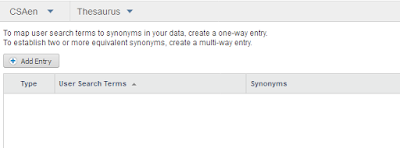
Check these screen capture before and after thesaurus import.

Before Thesaurus Import
After importing thesaurus.

After Thesaurus Import